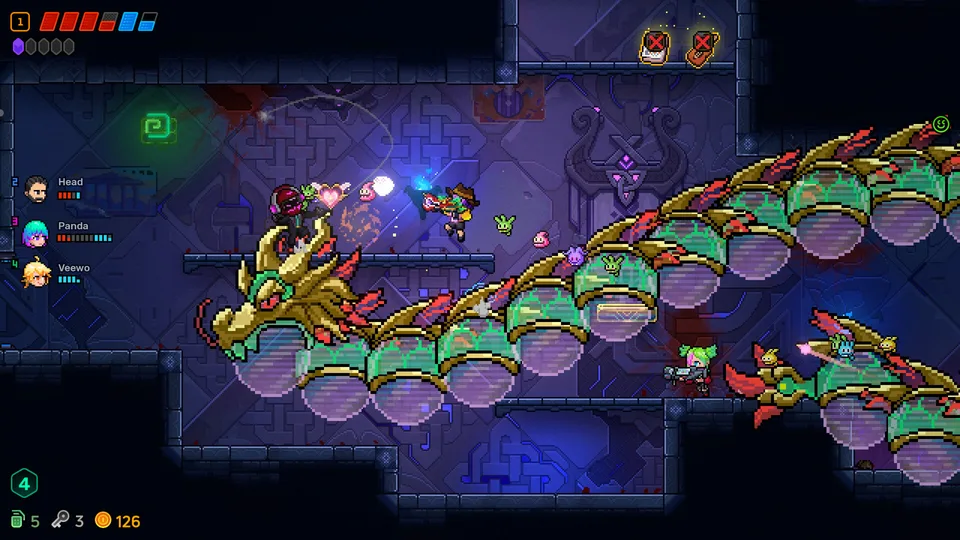
Learn how to troubleshoot and resolve mouse pointer frame rate locking issues in Neon Abyss 2 with effective Windows and driver-level adjustments.
Published: Neon Abyss 2 Wiki Editorial Team
Table of Contents
Troubleshooting Frame Rate and Mouse Input Issues
When playing action-heavy titles like Neon Abyss 2 (developed by Veewo Games), smooth input is critical to the experience. If you find your mouse pointer feels sluggish or appears locked to a 60 FPS refresh rate despite your monitor's capabilities, the issue usually stems from a conflict between your Windows display settings, GPU driver configurations, and the game’s internal engine synchronization.
This guide focuses on isolating the source of the input lag or frame locking. Before making deep system changes, it is essential to verify that your hardware drivers are up to date, as outdated software is the most common cause of "locked" performance profiles.
Optimizing Windows Mouse and Display Settings
Windows itself contains several "helper" features that can inadvertently interfere with raw mouse input in games. These features are designed for desktop productivity but often cause latency or forced synchronization issues in high-speed games.
Disable Pointer Precision: Navigate to the Control Panel, select "Mouse," and under the "Pointer Options" tab, uncheck "Enhance pointer precision." This prevents Windows from applying non-linear acceleration to your mouse movements.
Check ClickLock: Ensure "Turn on ClickLock" is disabled in the "Buttons" tab of your Mouse settings, as this can cause input registration delays.
Hardware Acceleration: If you are using Windows 11, check your display settings for "Hardware-accelerated GPU scheduling." Toggling this can sometimes resolve synchronization issues between the OS and the graphics card.
GPU Driver Configurations
The most frequent culprit for frame rate locking is the graphics card's control panel. Both NVIDIA and AMD drivers include settings that override in-game configurations to maintain "stability," which can look like a 60 FPS lock.
Open your GPU Control Panel: Right-click your desktop and select the NVIDIA Control Panel or AMD Radeon Software.
Manage 3D Settings: Look for "Vertical Sync" (V-Sync) and "Frame Rate Limit" or "Maximum Frame Rate."
Reset to Application Controlled: Set these to "Application Controlled" or "Off" to allow Neon Abyss 2 to manage its own frame delivery.
Disable Frame Rate Positioning: If your driver software has a specific feature for "Frame Rate Positioning" or "Chill," ensure it is disabled while testing the game.
According to general community reports regarding display synchronization, forcing these settings to be managed by the application often removes the artificial ceiling on input responsiveness.
Isolating Third-Party Interference
If the settings above do not resolve the issue, background applications may be hooking into the game process and enforcing a frame cap. A "Clean Boot" is the most effective way to identify if a third-party service—such as an overlay, a recording tool, or a peripheral management suite—is the source of the conflict.
Tip
To perform a clean boot, open the System Configuration tool (msconfig), navigate to the "Services" tab, and select "Hide all Microsoft services." After disabling the remaining services, restart your PC. If the mouse input issue disappears, you can gradually re-enable the services to pinpoint the exact culprit.
Why Does This Happen?
Input locking is rarely a fault of the game code alone. It is usually a result of "Display Latency Compensation." When your monitor's refresh rate, your Windows desktop frame rate, and the game’s render engine do not align, the operating system may force a V-Sync lock to prevent screen tearing. While this provides a visually stable image, it creates the sensation that the mouse is "heavy" or locked to a lower refresh rate.
By disabling "Enhance pointer precision" and forcing your GPU to defer frame management to Neon Abyss 2, you effectively remove the middle-man that is causing the synchronization lag. Always ensure you are running the game in "Fullscreen" or "Borderless Windowed" mode, as Windows handles input priority differently depending on the display mode selected.
FAQ
Does Neon Abyss 2 have an in-game frame rate cap?
Check the game's internal settings menu. Some titles include a "V-Sync" or "FPS Limit" toggle. Ensure these are set to match your monitor's native refresh rate or set to "Unlimited" to see if the behavior changes.
Will updating my GPU driver fix the issue?
Often, yes. Driver updates frequently include "Game Ready" profiles that optimize how the GPU interacts with specific titles. If a driver is incompatible or corrupted, it may fail to communicate the correct refresh rate to the game engine.